sctl Browser (Control Your Browser from the CLI and AI)
sctl Browser is the browser extension that ships with sctl. Once it is paired, the command line and MCP-capable AI clients can control the browser through sctl:
- manage tabs, windows and tab groups;
- manage bookmarks, the reading list, history, recently closed items, downloads, cookies, browsing data and installed extensions;
- automate pages in background tabs — accessibility snapshots, clicking, filling, screenshots, running JavaScript — without switching away from the tab you are looking at;
- read a page's console messages, uncaught exceptions and network requests;
- open a CDP endpoint so existing Playwright / Puppeteer scripts can use your signed-in browser.
sctl Browser uses the same sctl serve as External Access, but the two are paired
separately and do not depend on each other: you can use sctl Browser without installing ScriptCat.
Unlike ScriptCat's External Access, sctl Browser runs operations immediately, with no confirmation page. Any program that can run sctl commands — including the AI clients you connect — can read and change this browser's tabs, cookies and history, and read page content and network request headers and bodies (unmasked).
Only deleting bookmarks and uninstalling extensions need your approval in the browser, and destructive commands such
as clearing history or cookies need an explicit --yes. Only let programs you trust use sctl, and consider pairing a
separate browser profile.
1. Prepare sctl
Install sctl and keep sctl serve running as described in External Access. If you have
already connected ScriptCat, this step is done.
2. Install the extension
sctl Browser requires Chrome 125 or later, or a Chromium-based browser of the same version (such as Edge). Install it from an extension store:
| Browser | Install from |
|---|---|
| Chrome | Chrome Web Store |
| Edge | Microsoft Edge Add-ons |
Most other Chromium-based browsers can install it from the Chrome Web Store as well. Store installs update automatically.
Manual installation
If you cannot reach the extension stores, install it manually:
- Download
sctl-browser-extension-<version>.zipfrom GitHub Releases (its version matches sctl) and unzip it to a folder that will not be deleted or moved. - Open the browser's extensions page (
chrome://extensionsin Chrome,edge://extensionsin Edge) and turn on Developer mode. - Click Load unpacked and select the unzipped folder. This works the same way as installing ScriptCat manually.
A manual install does not update itself. To update, unzip the new version over the old one and click reload on the extensions page.
3. Pair
-
Keep
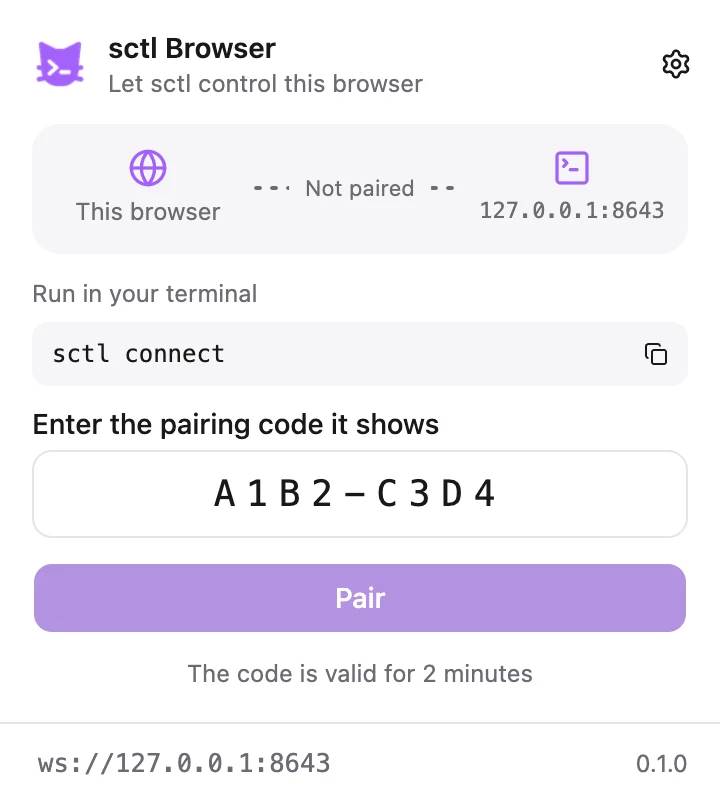
sctl serverunning and run this in another terminal:sctl connect -
Click the sctl Browser icon in the toolbar, enter the code shown in the terminal, and click Pair:
-
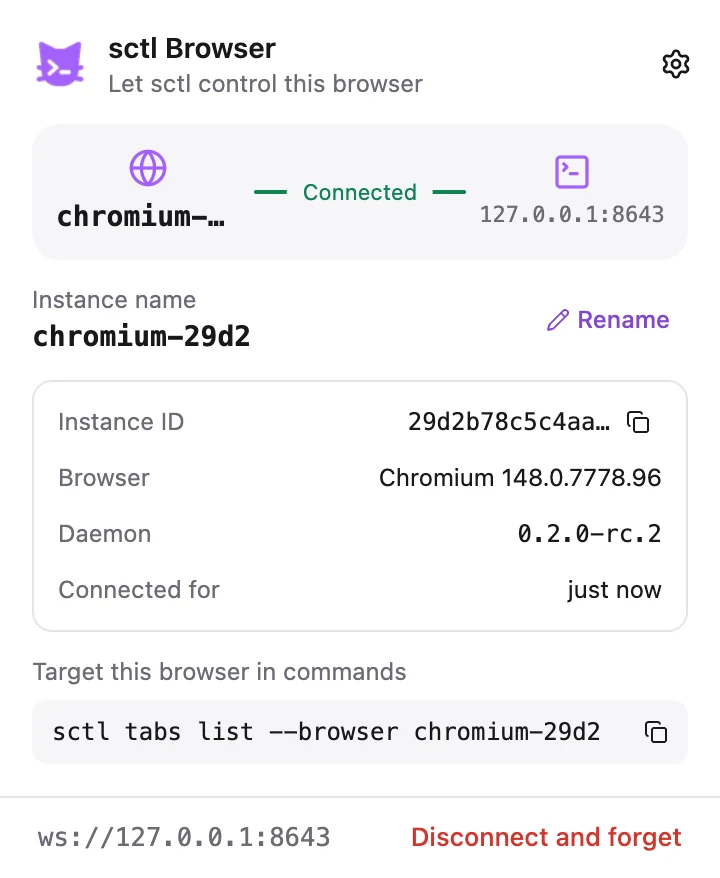
The popup shows Connected when pairing is done. You can rename this browser instance there and copy the flag that targets it in commands:
-
Confirm in the terminal that the browser is listed as
online:sctl browsers
One code pairs one extension. To pair both ScriptCat and sctl Browser, run sctl connect once for each. If the
daemon listens on a non-default address, change the daemon address in the settings at the top right of the popup.
4. Common commands
sctl tabs list                              # list tabs
sctl tabs open https://example.com          # open a tab, print its ID
sctl page snapshot --tab <id>               # snapshot with refs like e5
sctl page click e5 --tab <id>               # click a ref
sctl page fill e7 "hello" --tab <id>        # fill an input
sctl page screenshot --tab <id> -f page.png # screenshot
sctl debug console --tab <id> --level error # console errors
sctl debug network --tab <id> --failed      # failed network requests
sctl history search github                  # search history
sctl cookies list --url https://example.com # list cookies
| Command group | Purpose |
|---|---|
sctl browsers | List paired browser instances, or forget one |
sctl tabs / windows / groups | Tabs, windows and tab groups |
sctl bookmarks / reading-list | Bookmarks and the reading list |
sctl history / recent / downloads | History, recently closed tabs and windows, downloads |
sctl cookies / browsing-data / extensions | Cookies, browsing data, installed extensions |
sctl page | Page automation: snapshot, click, fill, navigate, wait, screenshot, run scripts |
sctl debug | Record and read a tab's console and network requests |
sctl cdp | Send raw CDP commands, or open an endpoint for Playwright / Puppeteer |
Without --tab, page and debug commands act on the active tab of the last-focused window. Add -o json for
machine-readable output, run sctl <command> --help for every option, and see the
command-line reference in the sctl repository for details.
The debugging infobar
page, debug and cdp commands attach the browser's debugger to a tab, and the browser then shows an infobar
("sctl Browser" started debugging this browser) at the top of the window. It is the browser's own security notice and
the extension cannot hide it.
- The debugger detaches after the tab has been idle for 5 minutes;
sctl page detachdetaches it at once. - Closing the infobar also detaches the debugger, and a command that is running exits with code
2. - To suppress the infobar, start the browser with
--silent-debugger-extension-api.
Several browsers
You can pair several browsers (or several profiles of one browser) by running sctl connect once for each. When more
than one instance is online, pick one with --browser <name> or the SCTL_BROWSER environment variable; without a
target, tabs list and windows list combine every online instance.
5. Operations that need confirmation
| Operation | How it is confirmed |
|---|---|
Deleting bookmarks (bookmarks rm), uninstalling extensions (extensions uninstall) | The browser opens an approval window and nothing happens until you approve |
| Removing reading list entries, deleting or clearing history, clearing browsing data, deleting or clearing cookies, cancelling downloads, erasing download records or deleting downloaded files, disabling extensions | Requires --yes; without it nothing runs and the command exits with code 3 |
| Everything else | Runs immediately |
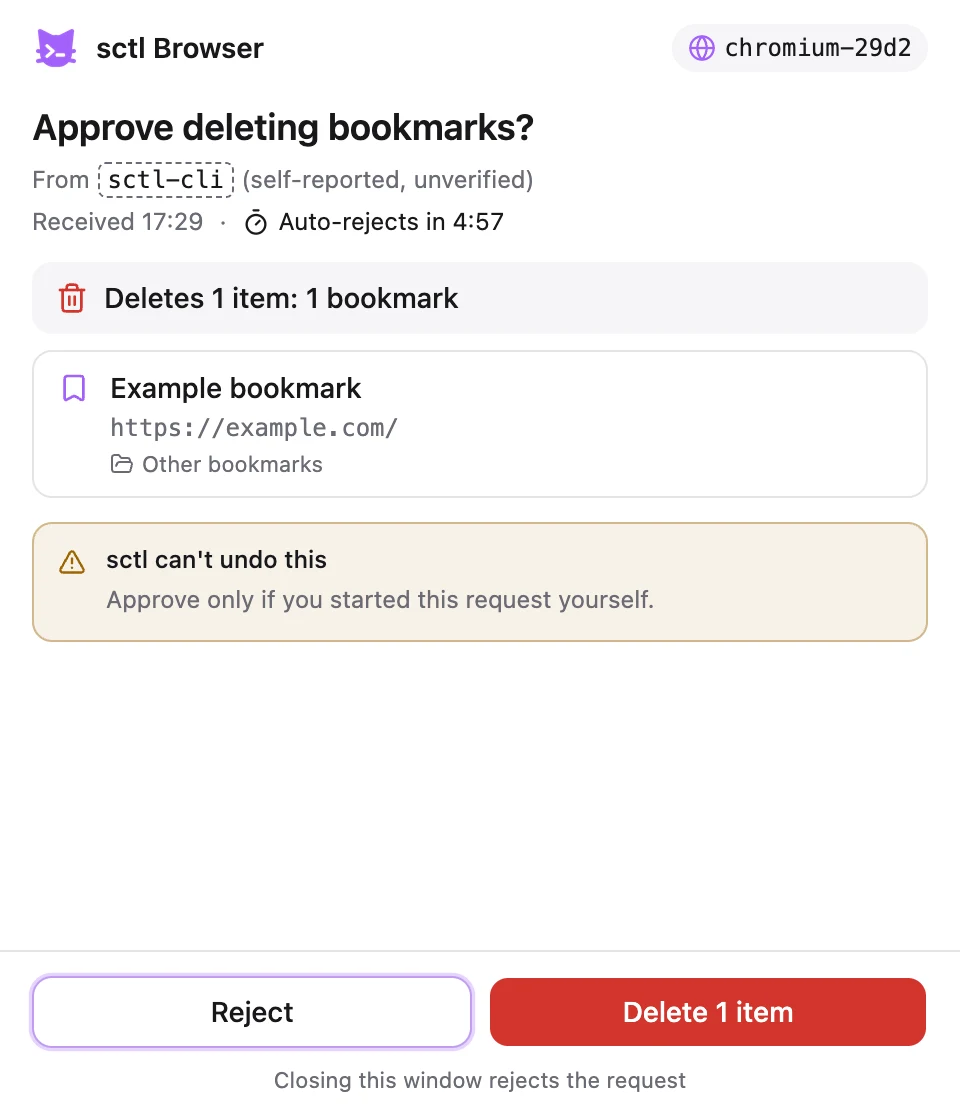
Clicking Reject or closing the window makes the command exit with code 1; if nobody decides within 5 minutes or
you press Ctrl-C, it exits with code 2.
6. Use it from an AI client
The MCP configuration is exactly the same as in External Access: one sctl mcp serves both
the ScriptCat and the sctl Browser tools, such as tabs_list, page_snapshot, page_click, debug_console and
cdp_endpoint. The full tool list is in the sctl repository's
MCP documentation.
If your AI tool works better with the command line, install the agent skill from the sctl repository instead.
7. Connect Playwright / Puppeteer
sctl cdp endpoint
The command prints two addresses: http://127.0.0.1:8643/cdp/<secret> for Playwright and
ws://…/devtools/browser/<id> for Puppeteer. With Playwright, use the browser's own context to keep your signed-in
state:
const { chromium } = require("playwright");

const browser = await chromium.connectOverCDP("http://127.0.0.1:8643/cdp/<secret>");
const context = browser.contexts()[0];
const page = await context.newPage();
await page.goto("https://example.com");
await browser.close(); // disconnects only; the browser and its tabs stay open
- The endpoint address is itself the credential: whoever has it fully controls this browser, so treat it like a password.
- One client can connect at a time; while it is connected,
sctl page,sctl debugandsctl cdp sendare unavailable. - Run
sctl cdp closewhen you are done; the endpoint also expires after 60 minutes without a connected client.
8. Disconnect and remove
- Click Disconnect and forget in the popup, or run
sctl browsers forget <name>in the terminal, to remove the pairing. - Removing the extension also removes the pairing on the extension's side. Run
sctl connectagain to pair later.
Privacy
sctl Browser collects and uploads nothing; everything travels only between the browser and the sctl you run yourself. See the sctl Browser Privacy Policy.