Enable Browser User Scripts Support

Allow User Scripts
Allow User Scripts is a new feature of Manifest V3 that allows user scripts to run in the browser.
- Edge
- Chrome
- Edge Mobile
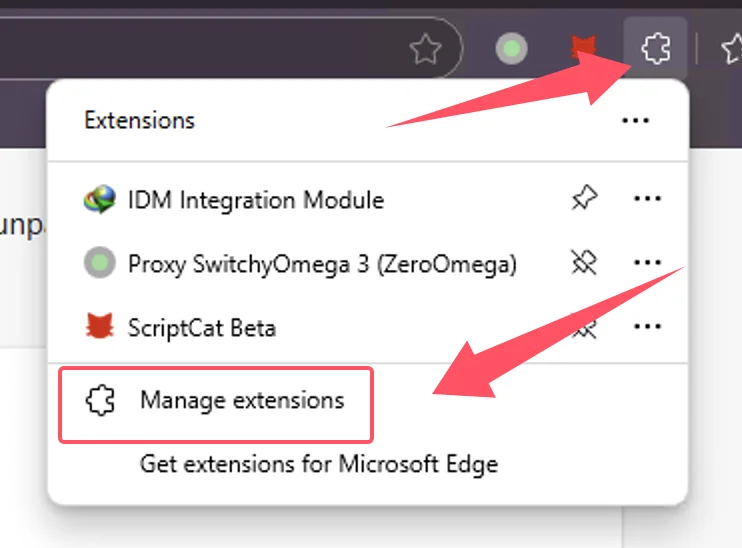
① Open the browser's extensions list, then click the three-dot menu next to the extension
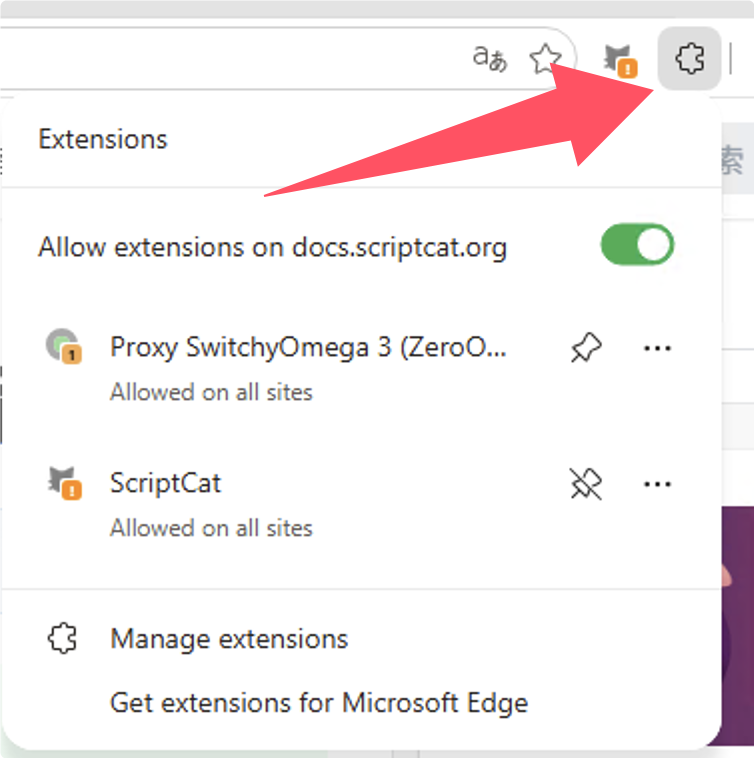
Alternatively, right-click the extension icon and select Manage extension
② Click Manage extension in the menu
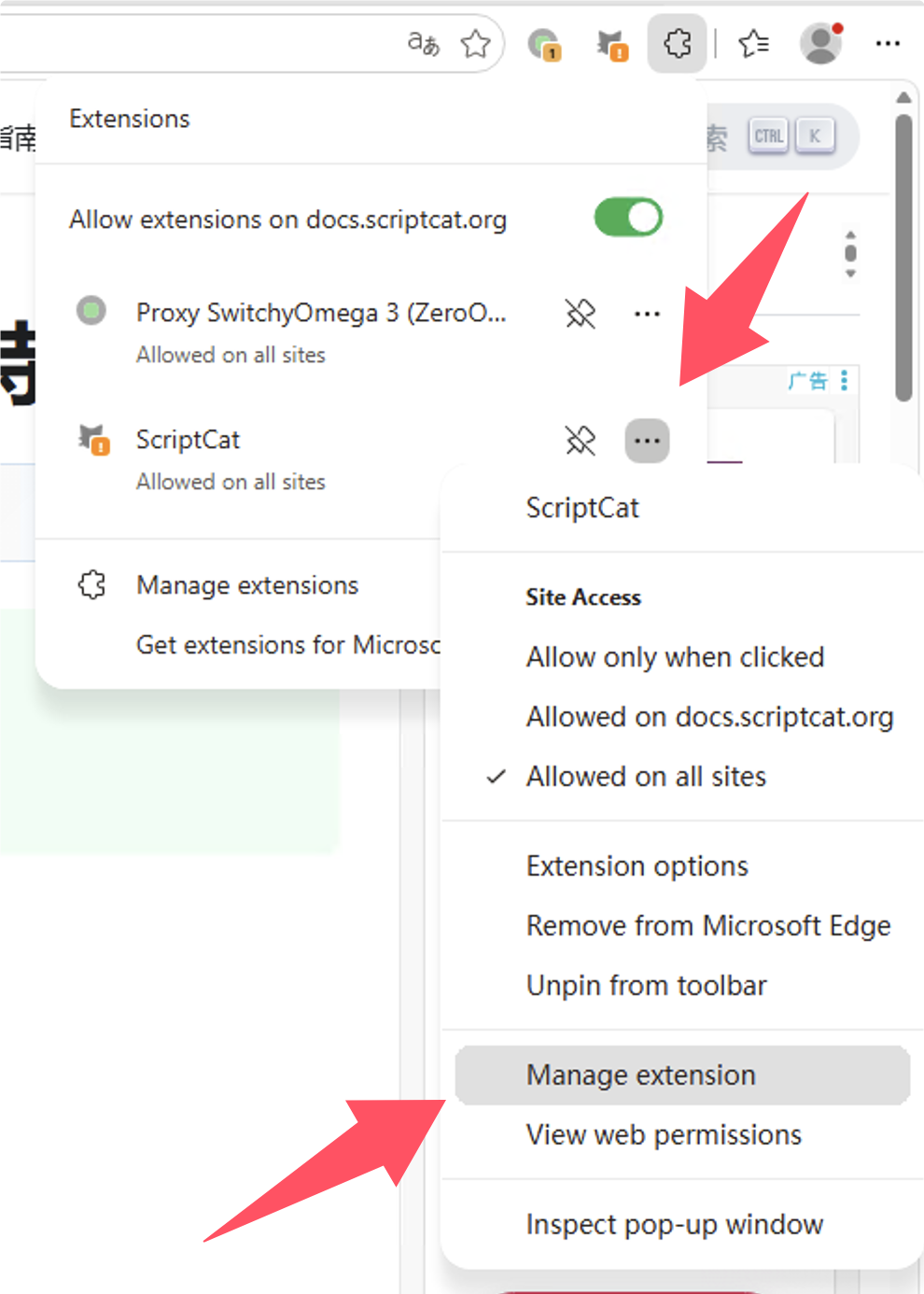
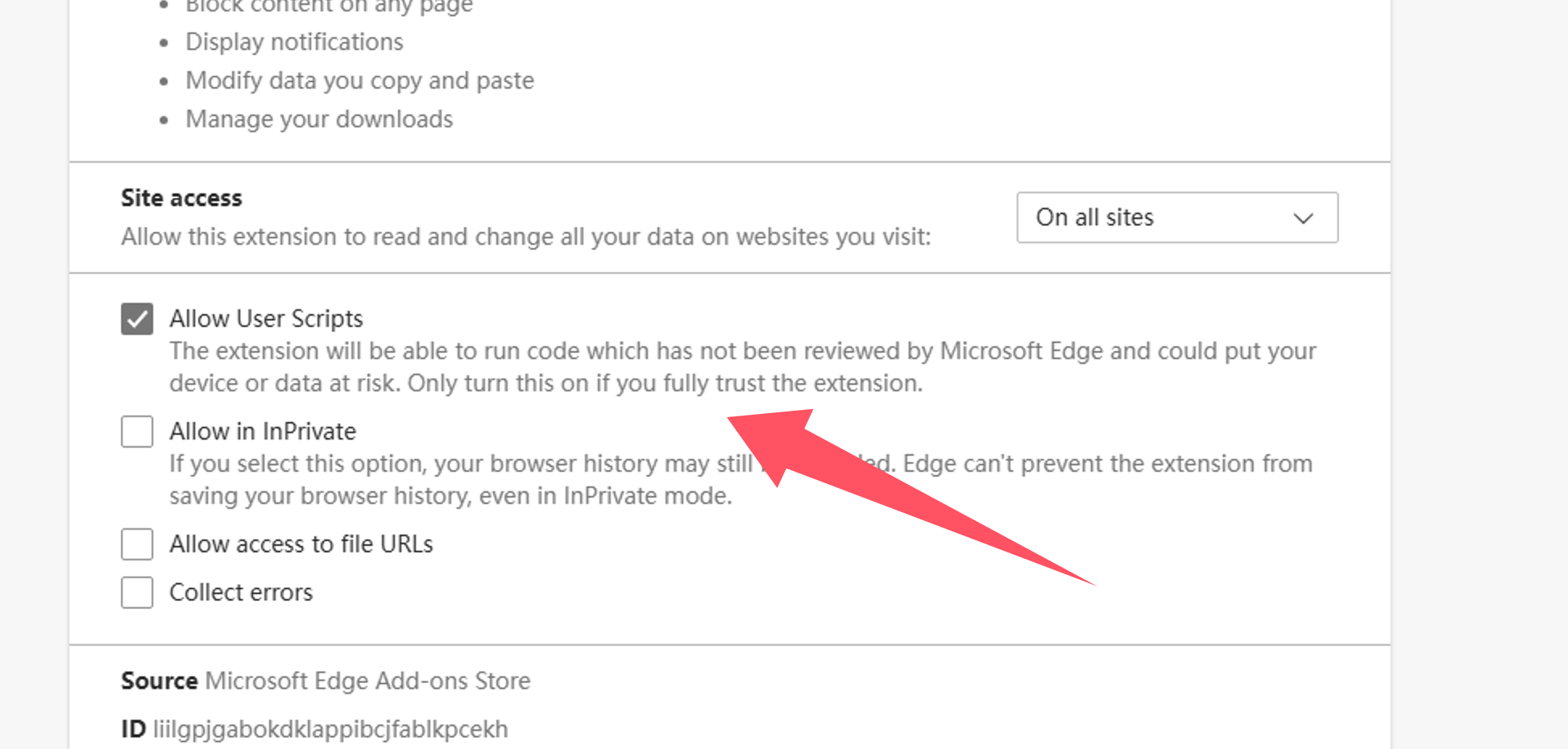
③ In the ScriptCat extension details page, find the Allow user scripts option and enable it. Then disable and re-enable the extension, or restart the browser to make the script functionality effective.
⚠️⚠️⚠️ For lower version Edge browsers (<=143 version) or users without this option, please refer to Enable Developer Mode
① Open the browser's extension management interface, or visit chrome://extensions/
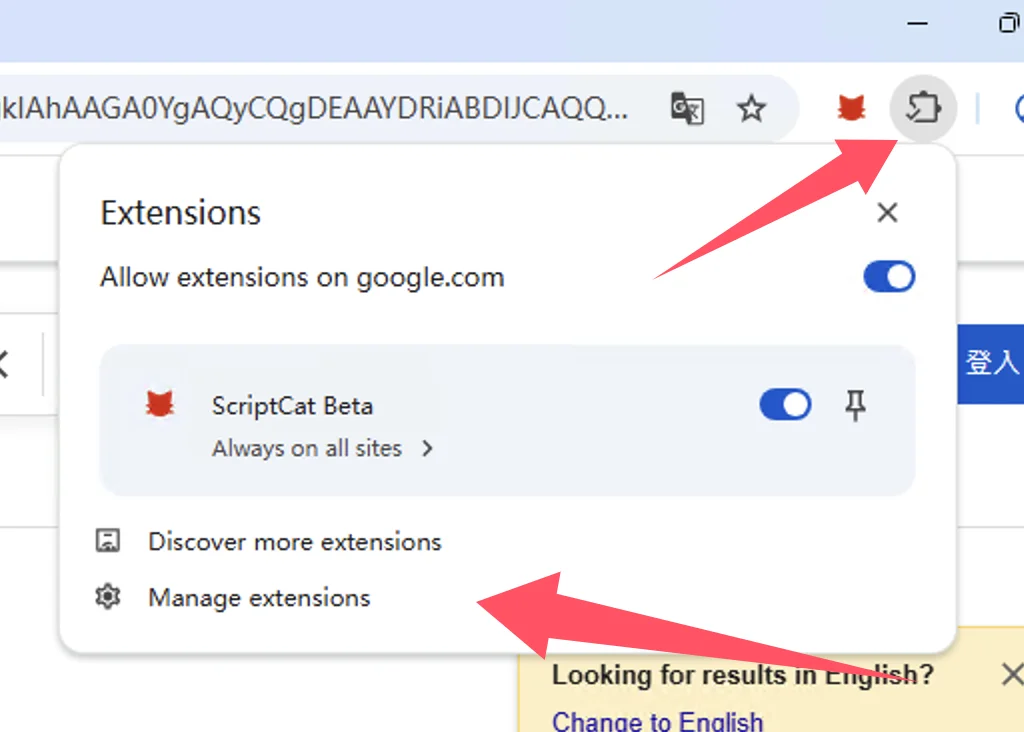
② In the extension management interface, find the ScriptCat extension and click Details
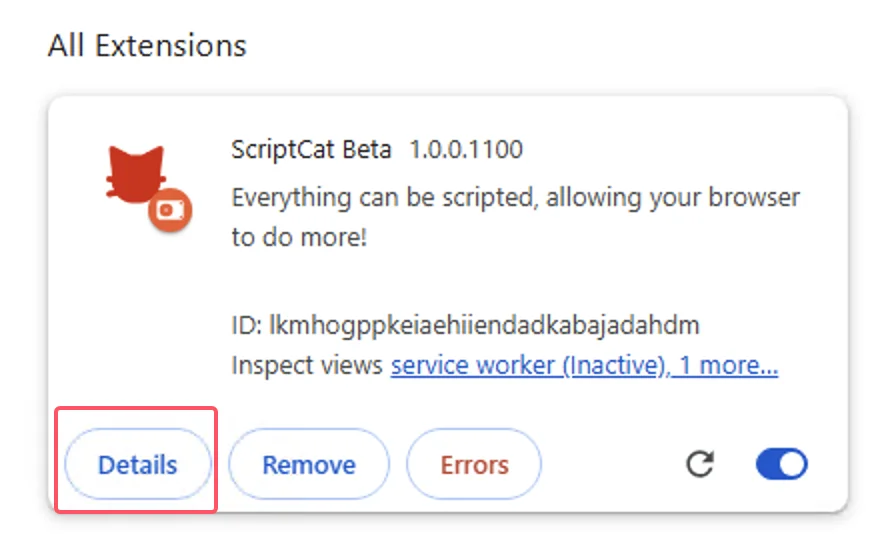
③ In the ScriptCat extension details page, find the Allow user scripts option and enable it. Then disable and re-enable the extension, or restart the browser to make the script functionality effective.
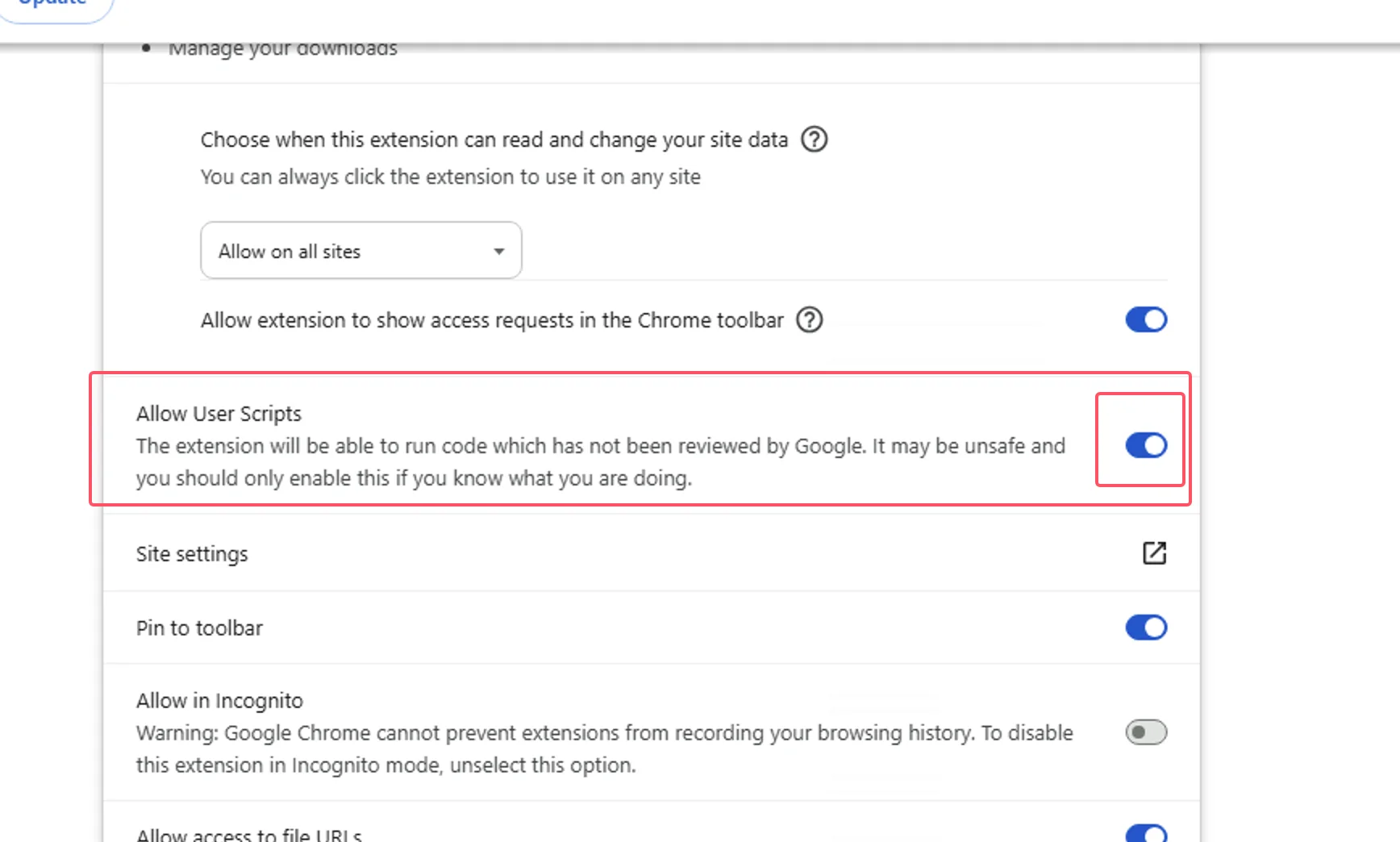
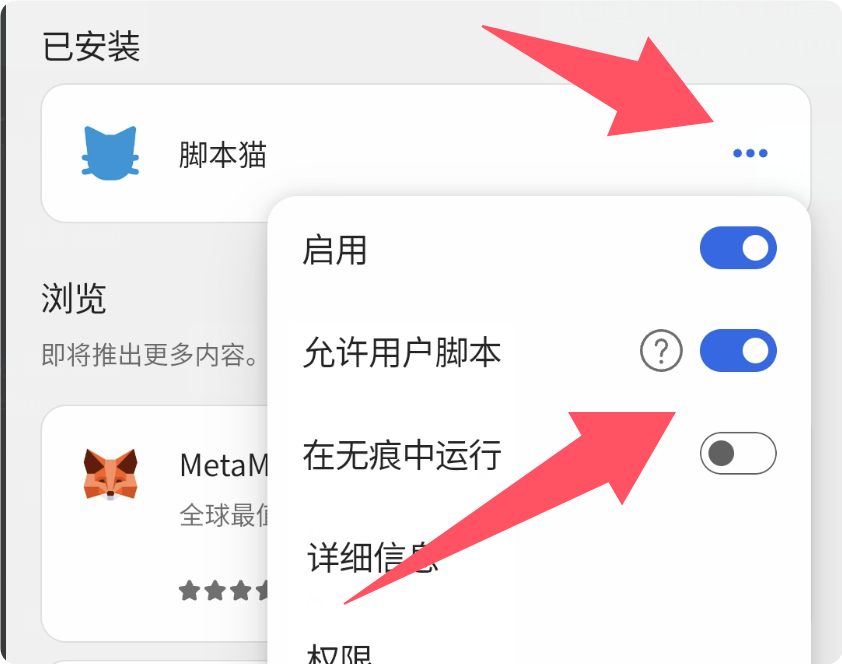
For Edge Mobile with browser engine version ≥ 138, Developer Mode is not required. Enable Allow user scripts in the extension settings instead.
① Open the Edge Mobile extensions list, find the ScriptCat extension, and tap the ⋮ button on the right
② In the extension settings popup, enable Allow user scripts
③ Disable and re-enable the extension, or restart the browser to make the script functionality effective.
⚠️⚠️⚠️ For browser engine versions lower than 138, or users without this option, please refer to Enable Developer Mode
Enable Developer Mode
- Edge
- Chrome
- Edge Mobile
① Open the browser's extension management interface, or visit edge://extensions/
② Enable Developer mode (In some browsers, this mode may be located in other options, such as 360 Browser: Advanced Management > Developer Mode)
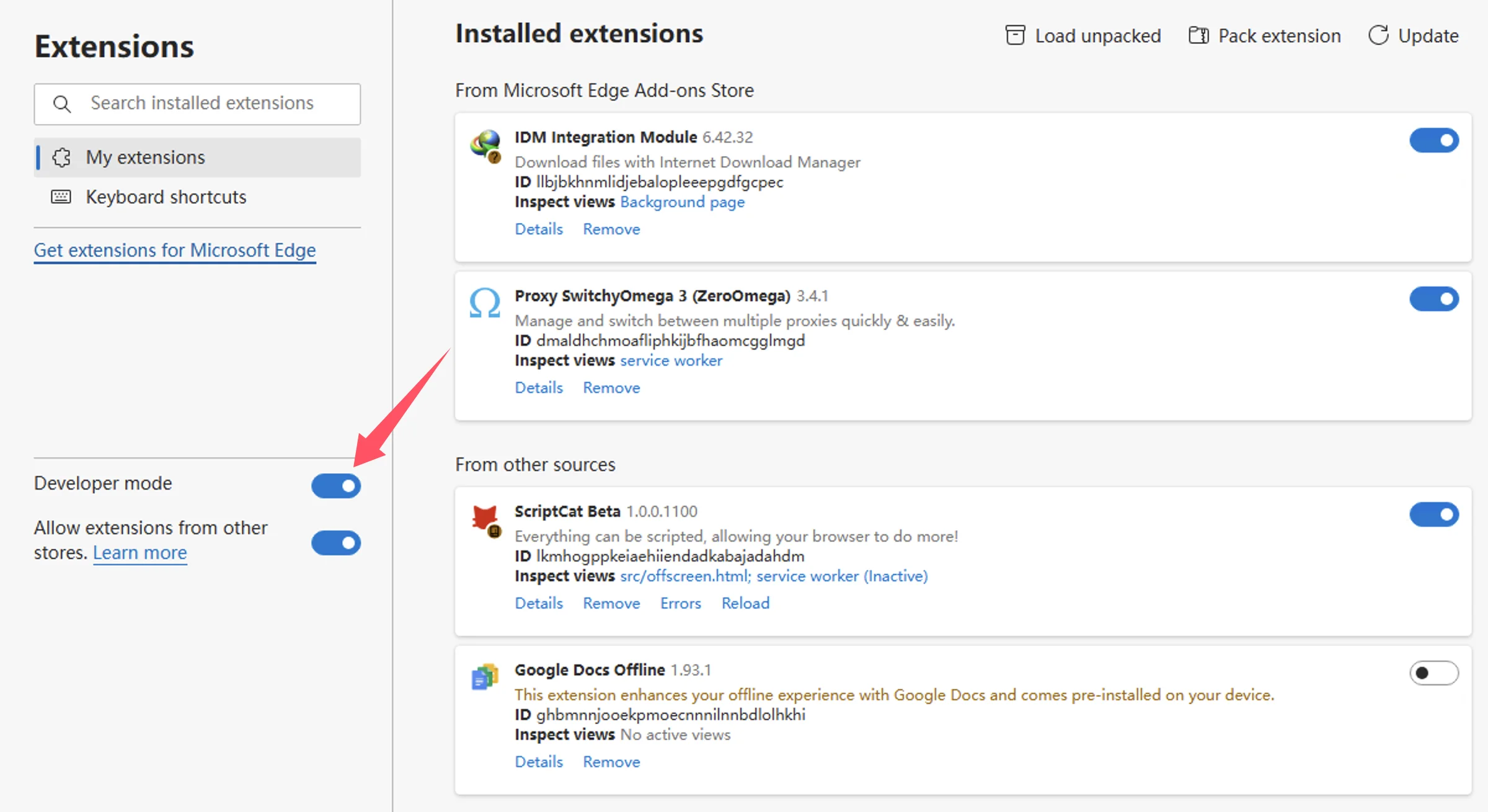
③ After enabling developer mode, disable and then re-enable the extension, or restart the browser to make the script functionality effective.
① Open the browser's extension management interface, or visit chrome://extensions/
② Enable Developer mode (In some browsers, this mode may be located in other options, such as 360 Browser: Advanced Management > Developer Mode)
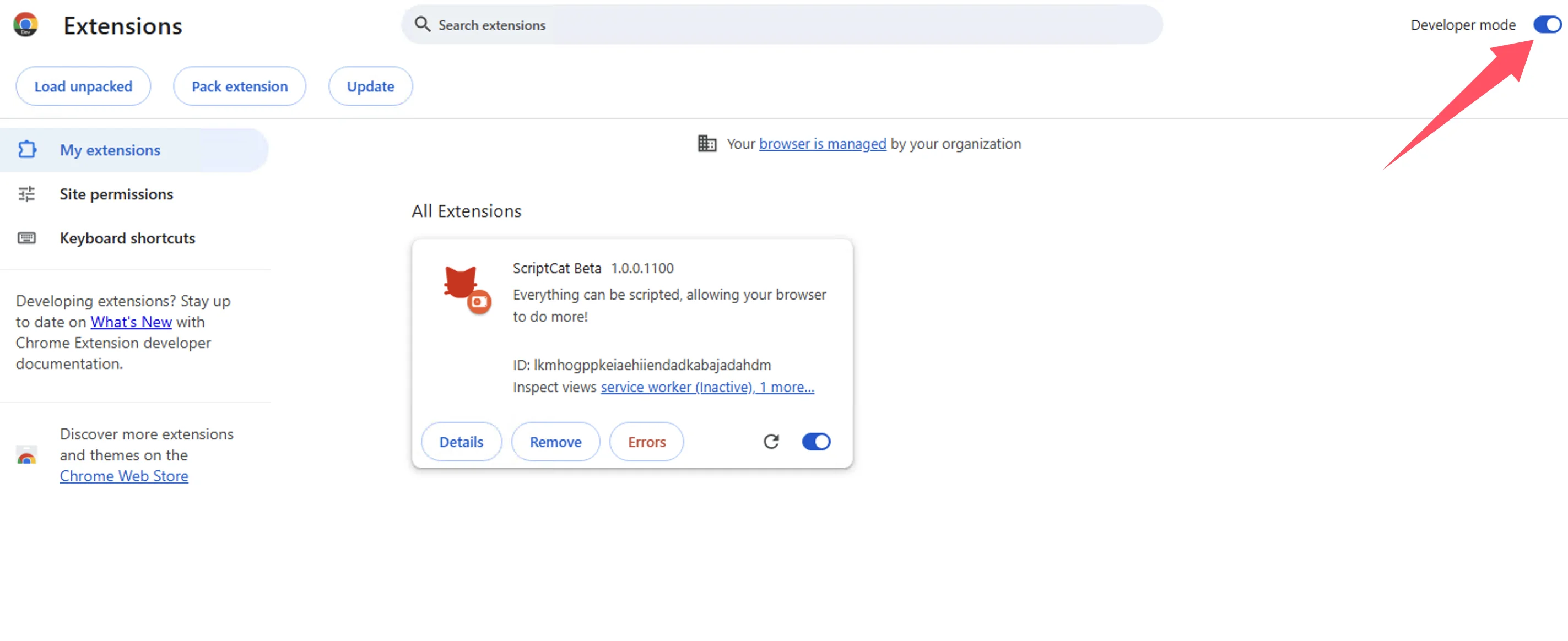
③ After enabling developer mode, disable and then re-enable the extension, or restart the browser to make the script functionality effective.
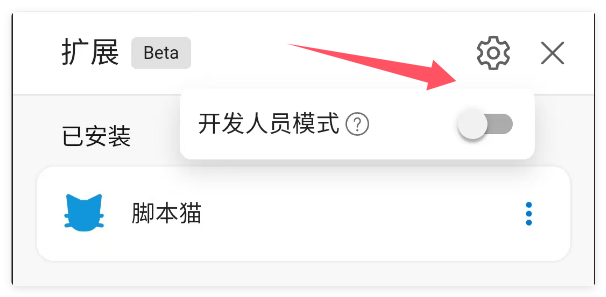
For Edge Mobile with browser engine versions lower than 138, or without the Allow user scripts option, tap the settings button at the top of the extensions page to enable Developer Mode.
If you are using Windows 8/7/XP systems, or your browser engine version is lower than 120, you need to manually install the legacy ScriptCat. v0.16.x is the last version that supports Manifest V2. Installation steps can be found at: Load unpacked extension installation.
Technical Background: Manifest V3
Due to browser restrictions, extensions are forced to upgrade to Manifest V3, and Manifest V2 extensions will be completely discontinued after June 2025. Under the limitations of Manifest V3, you must enable developer mode or user scripts functionality to use ScriptCat extension normally.
Reference: Developer mode for extension users, Manifest V3
For browser engine versions ≥ 138, you need to enable "Allow User Scripts". For lower versions, use "Enable Developer Mode".