Background Script
Background scripts are suited to scripts that need to keep running continuously. Background scripts are a ScriptCat-specific script type; they run in a sandbox and cannot access the DOM. They can be developed using the same GM APIs as Tampermonkey, and compatibility notes are called out in the documentation.
Background Script (@background)
A background script is declared with the @background attribute. It lets the script keep running in the background after the script is enabled or the browser starts.
Scheduled Script (@crontab)
A scheduled script is a kind of background script suited to tasks that need to run repeatedly on a time cycle.
A scheduled script is declared with the @crontab attribute. It supports minute-level and second-level scheduling, and provides ScriptCat's extended syntax once / once(...) to avoid running more than once within the same time cycle.
⚠️ Notes:
- In a single script, only the first
@crontabtakes effect - It's recommended that the script's single execution time + retry time not exceed the cron interval, otherwise executions may overlap
Cron Expression Notes
ScriptCat's cron implementation is based on node-cron, with a small extension on top of standard cron syntax.
Expression Format
Standard 5-Field Format (Recommended)
minute hour day month weekday
Extended 6-Field Format (Not Recommended)
second minute hour day month weekday
⚠️ The 6-field format is not recommended Browser environments can't guarantee second-level precision, and it increases performance overhead — the background page may have its scheduling delayed.
Syntax Available Per Field
| Syntax | Meaning | Example |
|---|---|---|
* | Any value | * (every minute/hour) |
| number | Specific value | 5 (the 5th minute) |
a,b,c | Multiple discrete values | 1,15,30 |
a-b | Contiguous range | 10-23 |
*/n | Every n units | */5 |
a-b/n | Range with step | 10-50/10 |
Weekday Rules
1–6: Monday through Saturday0or7: Sunday
The once Extension Syntax
What once Means
Using once in a cron expression means:
Within the current time cycle, only allow one successful execution
Even if later time points within the same cycle still match the cron rule, the script will not run again.
once vs. once(...)
| Syntax | Underlying cron value for this field | Description |
|---|---|---|
once | * (any value) | Runs on the first match within the cycle, without a specific time |
once(expr) | expr | Runs only at times matching expr within the cycle, and only once |
once(expr) lets you precisely specify candidate time points while still enforcing "run only once per cycle." All standard cron syntax (numbers, ranges, steps, lists) is supported inside the parentheses.
Example comparison:
* once * * *          // any minute of every hour; runs on the first match, no further runs that hour
* once(9-17) * * *    // between 9:00 and 17:59 every day, runs once per hour
0,30 once * * *       // whichever of minute 0 or 30 is matched first each hour runs; no further runs that hour
The Position of once = the Time Cycle It Limits
Wherever once / once(...) is placed, it means "run only once within that time granularity."
once position | Behavior |
|---|---|
| minute field | Runs only once per minute |
| hour field | Runs only once per hour |
| day field | Runs only once per day |
| month field | Runs only once per month |
| weekday field | Runs only once per week |
Examples:
* once * * *       // runs only once per hour
* * once * *       // runs only once per day
* 9-18 once * *    // runs only once between 9:00 and 18:59 each day
once Combined with Ranges / Lists / Steps
once / once(...) can be combined with any cron syntax, but there is only one rule:
Within the same cycle, once a run has succeeded, all further matching time points are ignored
Example 1: Range
* 10 once * *
Meaning:
- Every day, 10:00–10:59 are candidate times
- After the first match of the day
- 10:05–10:59 will no longer run
Example 2: List
* 1,3,5 once * *
Meaning:
- Every day, 1:00, 3:00, and 5:00 are candidate times
- If 1:00 has already run
- 3:00 and 5:00 will be skipped
Example 3: Step
* */4 once * *
Meaning:
- Every day, 0:00, 4:00, 8:00, 12:00, 16:00, and 20:00 are candidate times
- After the first run of the day
- No further time points will run
Example 4: once(...) Specifying Candidate Time Points
* once(9-17) * * *
Meaning:
- Every day, 9:00 through 17:00 are candidate hours
- The cycle resets every hour; within an hour, the first match stops further runs
- Effect: runs once per hour between 9:00 and 17:00 each day, 9 times in total
* 9-18 once * *
Meaning:
- Every day, 9:00–18:59 are candidate times
oncein the day field locks the cycle to once per day- After the first match of the day, nothing else runs before 18:59
@crontab Examples
Common
//@crontab * * * * *        // runs once per minute
//@crontab * * * * * *      // runs once per second (not recommended)
//@crontab 0 */6 * * *      // runs on the hour every 6 hours
//@crontab 15 */6 * * *     // runs at minute 15 every 6 hours
//@crontab * once * * *     // runs at most once per hour
//@crontab * * once * *     // runs at most once per day
//@crontab * 10 once * *    // runs only once within the 10:00 hour each day (e.g. if it ran at 10:04, it won't run again from 10:05-10:59)
//@crontab * */4 once * *   // checks at most once every 4 hours each day (e.g. if it ran at 4:00, it won't run again at 8, 12, 16, 20, 24, etc.)
Advanced
//@crontab * 1,3,5 once * *       // runs once at 1:00, 3:00, or 5:00 each day (e.g. if it ran at 1:00, it won't run again at 3:00 or 5:00)
//@crontab * 10-23 once * *       // runs once between 10:00 and 23:59 each day (e.g. if it ran at 10:04, it won't run again from 10:05-23:59)
//@crontab * once 13 * *          // runs once per hour on the 13th of every month
//@crontab * once(9-17) * * *     // runs once per hour between 9:00 and 17:00 each day
//@crontab 0,30 once * * *        // whichever of minute 0 or 30 is matched first each hour runs; no repeat that hour
//@crontab * 9-18 once * *        // runs only once between 9:00 and 18:00 each day
Usage Recommendations
Good Fits for once
-
Tasks that only need to run once per day/hour
-
Status checks, sync, and reporting scripts
-
Avoiding the following problems:
- The browser hasn't been opened for a long time
- Background-page scheduling delays
- Duplicate execution caused by a browser restart
Not Recommended for once
- Tasks that must run at a precise moment
- Scripts whose execution time may significantly exceed the cron interval
- Tasks with strict consistency requirements on the number of executions
Testing Cron Expressions
When testing a cron expression, please temporarily replace once / once(...) with their underlying value:
once→*once(expr)→expr
Note that testing tools may not support the extended 6-field format.
Recommended tools:
On the script list page, hover over the run status column to see the script's next scheduled execution time.
Logs
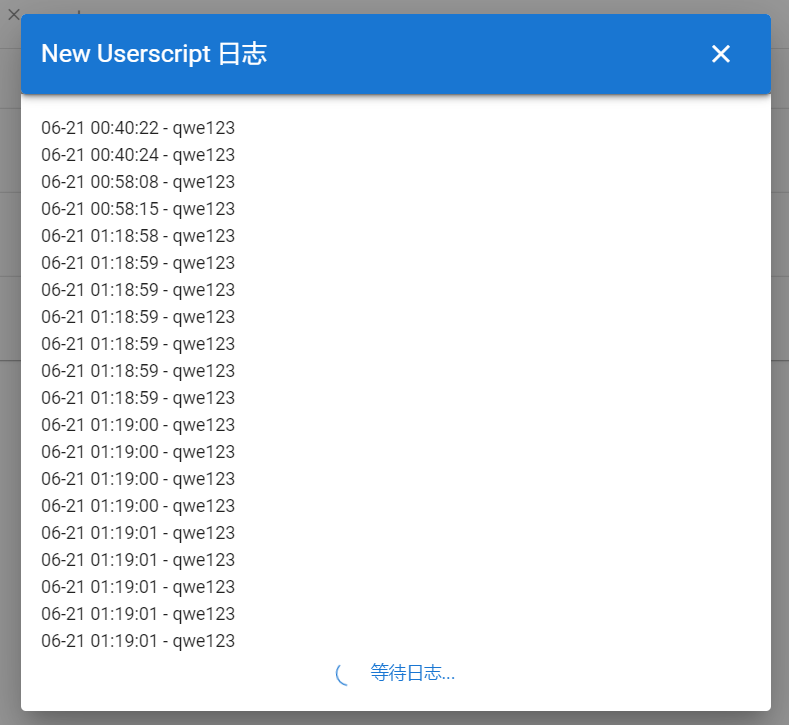
On the script list page, hovering over the run status column shows a tooltip with the script's run status;
clicking it pops up the log content printed via GM_log.

Script Debugging
Background scripts can be debugged directly from the script editor page, but this has the following limitations:
valuedoesn't sync properlyregisterMenumenus don't trigger properly
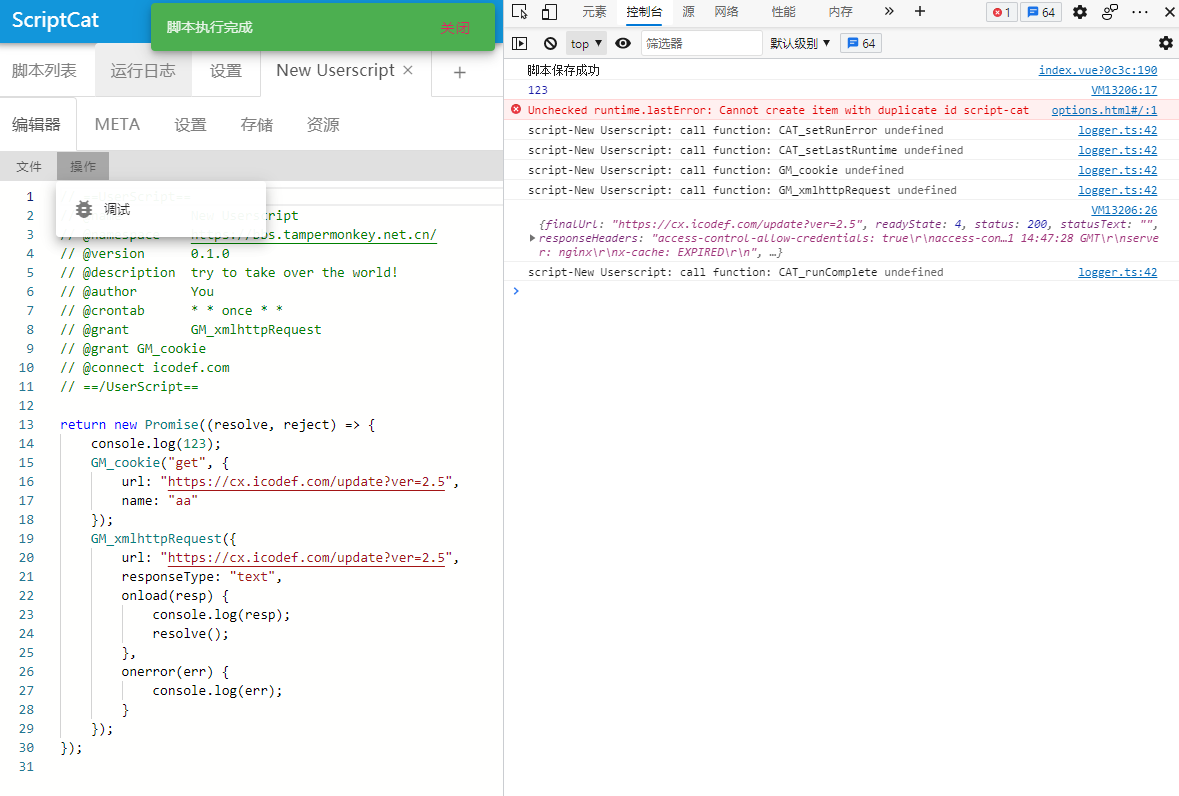
To debug the real runtime environment, enable Developer Mode in the extension settings, then open the extension's background.html page to debug.
Errors raised at runtime can also be viewed in the run log.

Promise
The following pattern is highly recommended, as it also allows the script manager to monitor script execution.
If the script performs any asynchronous operation, it must return a Promise.
// ==UserScript==
// @name         Background Script
// @namespace    wyz
// @version      1.0.0
// @author       wyz
// @background
// ==/UserScript==
return new Promise((resolve, reject) => {
  if (Math.round((Math.random() * 10) % 2)) {
    resolve("ok"); // succeeded
  } else {
    reject("error"); // failed, with the error reason
  }
});
// ==UserScript==
// @name         Scheduled script that runs once a day
// @namespace    wyz
// @version      1.0.0
// @author       wyz
// @crontab      * * once * *
// ==/UserScript==
return new Promise((resolve, reject) => {
  if (Math.round((Math.random() * 10) % 2)) {
    resolve("ok"); // succeeded
  } else {
    reject("error"); // failed, with the error reason
  }
});
// ==UserScript==
// @name         Call an API
// @namespace    wyz
// @version      1.0.0
// @author       wyz
// @crontab      * * once * *
// ==/UserScript==
return new Promise((resolve, reject) => {
  GM_xmlhttpRequest({
    url: "https://bbs.tampermonkey.net.cn/",
    onload() {
      resolve("ok"); // succeeded
    },
    onerror() {
      reject("error"); // failed, with the error reason
    },
  });
});
Please make sure to call resolve / reject only after the script's logic has truly finished.
Once called, the manager considers the script's execution complete, and any subsequent GM operations will no longer take effect.
Error Retry
ScriptCat background scripts support error retry.
When a script fails, it can reject with a CATRetryError to trigger a retry.
- Minimum retry interval: 5 seconds
- Avoid conflicting with the script's own execution time, otherwise duplicate execution may occur
// ==UserScript==
// @name         Retry example
// @namespace    https://bbs.tampermonkey.net.cn/
// @version      0.1.0
// @description  try to take over the world!
// @author       You
// @crontab      * * once * *
// @grant        GM_notification
// ==/UserScript==

return new Promise((resolve, reject) => {
  GM_notification({
    title: "retry",
    text: "Retrying in 10 seconds",
  });
  reject(new CATRetryError("xxx error", 10));
});